


|
TOTAL:
|
$0.00 |

|

|
|
Your On-Line Source for Latin Music Downloads!
|


Great news! Our eBooks / sheet music / charts are now available for both WINDOWS and MAC. We recommend the Google Chrome Browser or the Mozilla Firefox browser to complete all your eBook and Audio album purchases. Same as with the our audio products, the personalized eBook pdfs are delivered in a zip file download via your browser, and can be accessed in your download area by clicking on the top right on the words Your Account.
All your personalized eBook pdfs are made available for purchase with a Personal Use License, where any and all distribution, duplication, sharing, resale and any other unauthorized use is strictly prohibited and a violation of applicable laws (criminal offense). We sincerely ask for your cooperation in the fight against piracy so we can continue to make these excellent Latin music resources and material available for study.
LPM is the exclusive eBook and audio distributor of the acclaimed BEYOND SALSA series of instructional books, the absolute best method for learning Cuban music styles. Please sample these featured titles here (Beyond Salsa Series). Each volume has two parts that are always sold separately: the audio album (mp3) and the eBook (pdf).
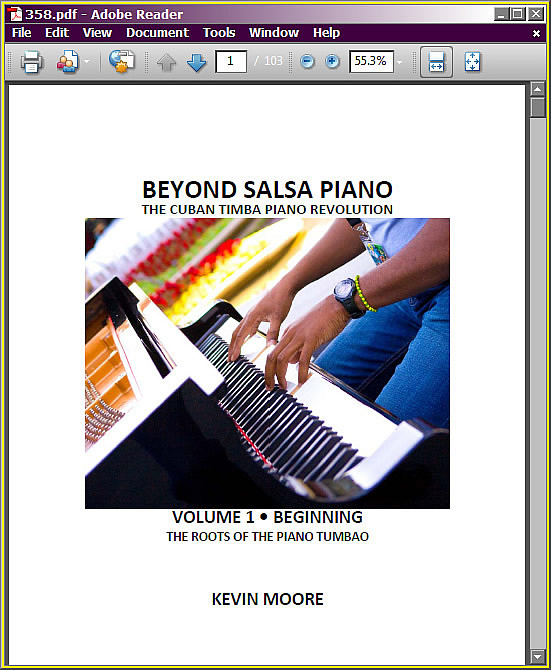
 While presented as a set of method books, the series doubles as a history course and record collecting guide for listeners, dancers, and players of instruments other than the piano.
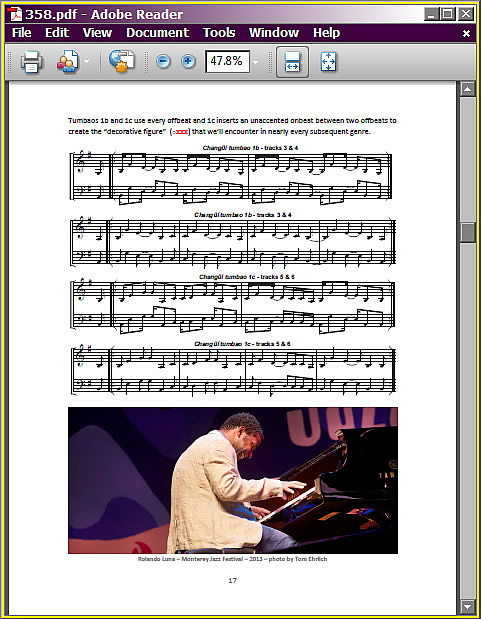
Beyond Salsa Piano-Bass-Percussion is a history and anthology of the role of these instruments in the Cuban rhythm section – from its first appearance to the present. In a broader sense, it’s a study of the tumbao – the art of creating music from layers of repeating rhythmic and melodic phrases. Whether these syncopated figures are called tumbaos, guajeos, montunos, riffs or vamps, this Afro-Cuban concept lies at the heart of nearly every popular music genre from salsa to rock, funk, R&B, hiphop and jazz.
** Click here or on any of the two images on the right to download a free sample of Beyond Salsa Piano Volume 1. **
Perhaps the most important goal of the series is to provide a comprehensive understanding of how tumbaos are constructed, their central role in the texture of Latin music of all eras, and the endless possibilities they provide for creative composing and arranging.
We also offer a premier folkloric product:
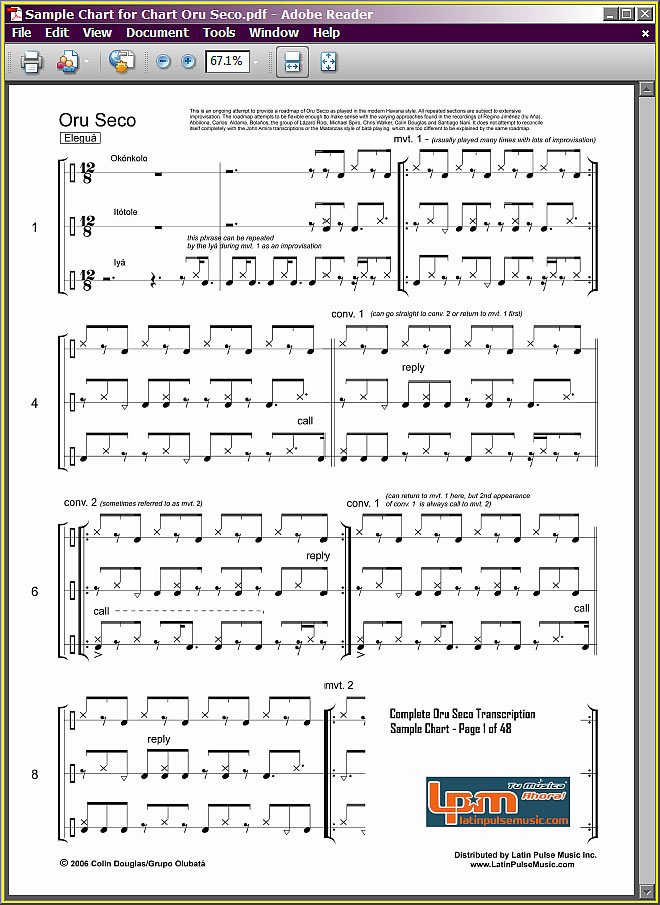 a complete 48 page transcription of the Oru Seco
for all three batá drums. Call it a living rhythmic anthology or a collection of percussion lore, the Oru del Igdodú (commonly known as the oru seco, meaning without singing) is a constantly evolving body of work that every respectable percussionist must be familiar with. It is said that every possible interesting permutation between the 4/4 and 6/8 meters is represented in the oru seco. The movements are played on three batá (double-headed hourglass drums) led by the main drum -the Iyá- and supported by the Itótele and the Okónkolo. Even a shallow secular analysis of the rhythms will quickly reveal its profound influence of all Caribbean music (salsa being the most general term).
a complete 48 page transcription of the Oru Seco
for all three batá drums. Call it a living rhythmic anthology or a collection of percussion lore, the Oru del Igdodú (commonly known as the oru seco, meaning without singing) is a constantly evolving body of work that every respectable percussionist must be familiar with. It is said that every possible interesting permutation between the 4/4 and 6/8 meters is represented in the oru seco. The movements are played on three batá (double-headed hourglass drums) led by the main drum -the Iyá- and supported by the Itótele and the Okónkolo. Even a shallow secular analysis of the rhythms will quickly reveal its profound influence of all Caribbean music (salsa being the most general term).
** Click here or on the image on the right to download a free sample of the Oru Seco transcription the Iyá, Itótele and Okónkolo batá drums. **
| Featured eBooks (book + audio combination): | |
|  |
Frequently Asked Questions:
1- How are the eBooks / charts / sheet music delivered?
2- Do I need Adobe Acrobat Reader?
3- What is the best browser to use to buy eBooks (both Windows and MAC)?
4- What is a Personal License?
5- What is a personalized pdf?
After you complete the purchase you will be directed to your download area. There you can click "Download" to download a zip file with your personalized pdf file.
At ant time after, you can visit your download area by clicking on "Your Account"in the top right of the website above the search box.
Yes. You will need a free program called Adobe Acrobat Reader to open your personalized pdf eBook / chart / sheet music.
We highly recommend you use the Google Chrome browser.
Each eBook / chart / sheet music purchase is completed after you agree to our terms of service, which includes an agreement of how you will use the files. Each file is made available for you to purchase for personal use only, licensed only to the person who has registered and completed the purchase, and strictly prohibits any and all distribution, duplication, sharing, resale and any other unauthorized use (a violation of applicable intellectual property laws, i.e. a criminal offense).
A personalized pdf is a file that is permanently watermarked with your personal information on every page. Removal of said watermark is a violation of the terms of service and can result in a suspension of your LPM account (you will not be able to make any more purchases). We sincerely ask for your cooperation in the fight against piracy so we can continue to make these excellent Latin music resources and material available for study.

|

|

|

|

|
| THE LATIN PULSE MUSIC WEBSITE NETWORK | |

|

|
Premier Latin Music catalog for sync crafted by real artists, award-winning musicians, vocalists and engineers from the the U.S., Caribbean, Central, and South America using live instruments. |
Supreme Latin production music for sync that provides authentic source music and geographically inspired underscore, delivering the true essence of each location. No AI. |

|

|
Mastering, mixing & recording services. Tropical big band, pop rock and urban music specialists. Voting member of the Recording Academy (Grammy & Latin Grammy Awards). Member NARIP. |
Your source for 100% pre-cleared genuine Latin music for Film & TV. Authentic, commercially released masters. Music licensing and song placement. Your Latin Music Specialists. |
 |

|
Latin music & multi-media download store. MP3 albums, videos, instructional eBooks and digital sheet music. Latin music digital content and downloads made 100% legal, fun, fast and easy. |
Home of Cuban Music on the Web! TIMBA.com is the largest Latin music website available today. Artist profiles, tour dates, new releases, concert reviews, instructional material (Timbapedia). |